
What This Post Covers:
- You will learn why a laptop can power on and still show nothing on its screen.
- You will run a 30-second test that pinpoints which component has failed.
- You will try safe, step-by-step home fixes before spending money.
- You will know the exact symptoms indicating a professional repair is required.
- You will learn practical habits to prevent black screen failures from returning.
Your laptop fan is spinning, the power LED is illuminated, and the keyboard backlight may even turn on—yet the screen remains completely pitch black. It is easy to fear the worst and assume the motherboard is dead, but that is rarely the case.
Because power is successfully reaching the motherboard, the problem is usually isolated to the display panel, a loose video cable, or unseated system memory (RAM), rather than a total system failure. A laptop showing a black screen with the fan running is often far simpler and cheaper to resolve than owners anticipate. This guide provides a rapid 30-second diagnostic test, safe at-home fixes, and clear indicators of when to seek professional assistance at GoFix laptop repairs.
Black Screen Causes: Quick Checker
| What You See | Likely Cause | What To Do |
|---|---|---|
| Caps Lock light toggles on/off, screen black | Display signal glitch or stuck Windows sleep state | Perform a 60-second hard power reset |
| Faint desktop image visible under a phone flashlight | Dead LED backlight circuit | Backlight or display panel replacement |
| Image flickers or lines appear when moving the lid | Loose, pinched, or worn eDP display video cable | Internal display cable reseat or replacement |
| Beep codes or flashing LED sequence with no logo | RAM module oxidized or unseated in slot | Reseat or clean RAM contact pins |
| No picture on an external TV or monitor either | Dedicated GPU or motherboard power rail fault | Book a professional motherboard diagnostic |
Why Is My Laptop Black Screen But Fan Running?
A laptop displays a black screen while the cooling fan spins when electrical power reaches the motherboard, but the video signal fails to reach or illuminate the screen. The root cause usually comes down to one of four common issues: a frozen display driver, oxidized RAM contacts, a dead LED backlight, or a severed display flex cable.
- Backlight vs Display: The screen's backlight is the illumination source behind the LCD panel. If the backlight circuit fails, your laptop operates normally, but the image is too faint to see without direct light. The flashlight test below confirms this immediately.
- Power vs Picture: The cooling fan spinning only proves that the 5V and 12V power rails are receiving electricity. It does not mean the system has completed its Power-On Self-Test (POST). Power and video generation are separate operations—a black screen simply means the video pipeline halted somewhere between the GPU, RAM, and the panel.
How Do You Run the 30-Second Laptop Black Screen Test?
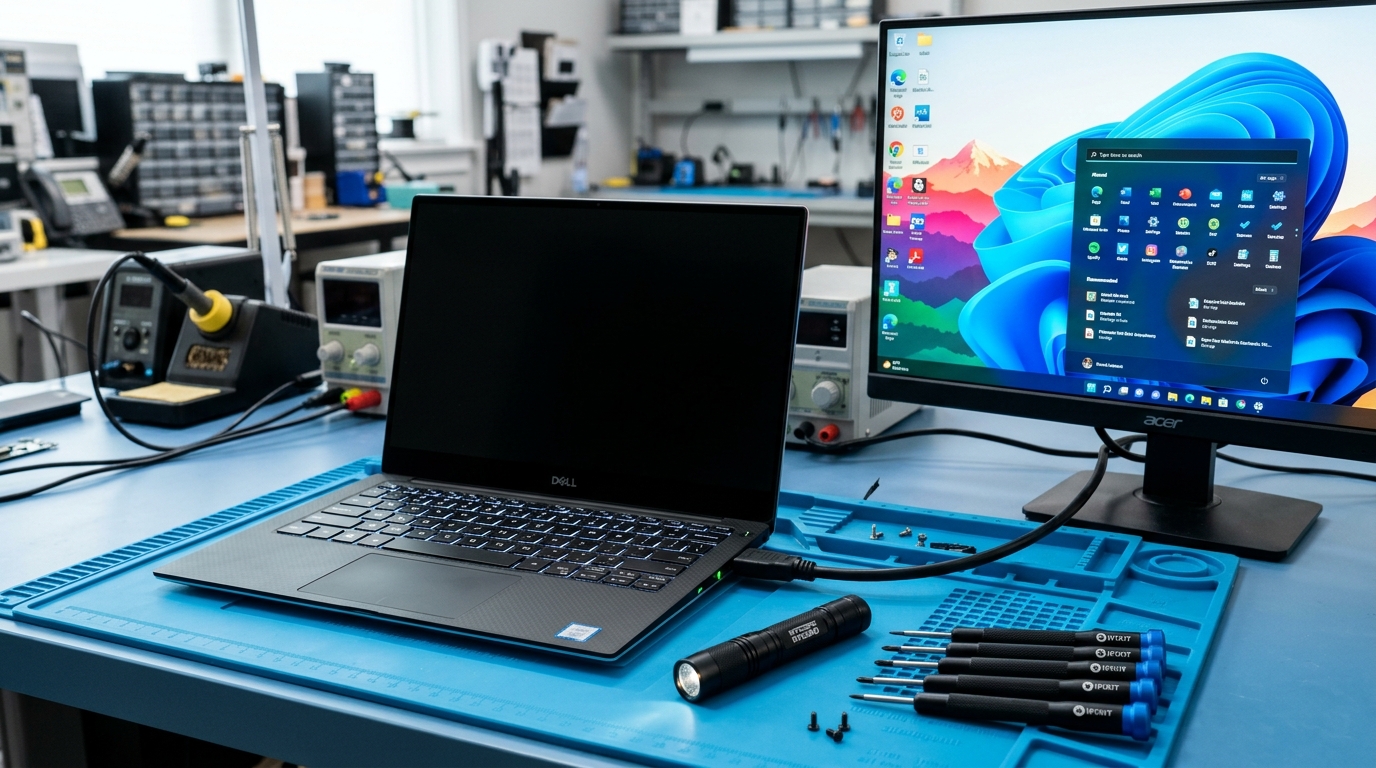
For any laptop that powers on with a black screen, connect the laptop to an external TV or computer monitor using an HDMI or USB-C display cable. If the external display shows your Windows desktop, your motherboard, processor, and graphics chip are completely healthy—the fault is isolated solely to your laptop's screen panel or video cable!
- Connect an HDMI cable: Plug your laptop into a TV or external monitor. Power both devices on and press
Windows Key + P, then tap the Down Arrow and press Enter to select "Duplicate". - The Phone Flashlight Test: Dim the room lights and shine your smartphone's flashlight directly at the laptop screen from an angle. If you can faintly make out your desktop icons or login prompt, your graphics card and LCD panel work—only the backlight power circuit has failed.
- The Caps Lock Test: Press the Caps Lock key. If its tiny LED illuminates and toggles off, Windows has booted successfully in the background and your motherboard is intact.
- Restart the Graphics Driver: Press
Windows + Ctrl + Shift + Bsimultaneously. You will hear a short beep and the screen will flicker as Windows restarts the video driver subsystem. - The Lid Hinge Check: Slowly tilt the laptop lid back and forth between 45 and 120 degrees. If the screen flashes on briefly or shows colored lines, the internal eDP cable passing through the hinge is pinched or frayed.
How Do You Fix a Laptop Black Screen But Fan Running at Home?
Work through these two proven home recovery techniques before booking a repair:
1. The 60-Second Static Power Discharge (Hard Reset)
Residual electrical charge trapped in motherboard capacitors often freezes the display controller. A hard reset drains this parasitic charge in under two minutes:
- Disconnect the AC charger and remove all USB dongles, external drives, and peripherals.
- If your laptop has an external removable battery, unlatch and remove it.
- Press and hold the laptop's power button continuously for 30 to 60 seconds.
- Plug in only the AC power adapter (leave the battery and peripherals out), and press the power button once to turn it on.
2. Reseat the RAM Modules
Microscopic dust or minor physical bumps can dislodge RAM contact pins from their memory slots, causing the laptop to fail POST without sending video to the screen. If your laptop features an accessible memory hatch or removable bottom cover (and is out of manufacturer warranty):
- Power down, unplug the charger, and ground yourself to discharge static.
- Open the bottom panel, spread the retaining metal clips to release the RAM stick, and gently pull it out at a 30-degree angle.
- Lightly clean the golden contact pins with a dry microfiber cloth or pencil eraser, then re-insert firmly until the retention clips click into place.
When Does a Laptop Black Screen Need Professional Repair?
Seek professional diagnosis if the external monitor test also yields no display, the laptop emits a burning smell, or the black screen developed following a heavy drop or liquid spill. These symptoms indicate component-level motherboard or dedicated GPU solder ball fractures that require specialized bench diagnostic equipment.
| Repair Type | Typical Cost Range (₹) |
|---|---|
| RAM replacement / cleaning | ₹1,500 – ₹5,000 |
| Display cable (eDP flex) replacement | ₹1,800 – ₹3,500 |
| LCD / LED screen panel replacement | ₹3,500 – ₹12,000 |
| Motherboard component-level repair | ₹4,000 – ₹15,000 |
Avoid repeatedly power-cycling the laptop if an internal short is suspected, as repeated thermal shocks can worsen a failing power IC. Repair specialists at GoFix run comprehensive multi-point diagnostics on all major laptop brands, ensuring issues are accurately identified before undertaking repairs.
How Can You Stop a Laptop Black Screen From Coming Back?
Protecting your laptop from display failure comes down to hinge handling and heat management:
- Open from the centre: Always lift and close the laptop lid from the middle of the bezel rather than a single corner. Uneven corner lifting twists the display assembly and shears the delicate video cable inside the hinge.
- Never close the lid on objects: Even a thin charging cable, pen, or pair of earbuds left on the keyboard can shatter the display panel or sever the backlight cable when closed.
- Maintain cooling airflow: Never operate a gaming or high-performance laptop on soft bedding or pillows. Blocked exhaust vents trap heat, accelerating solder degradation around display controllers.
- Never interrupt BIOS or firmware updates: Ensure the laptop is plugged into reliable mains power whenever Windows or manufacturer tools apply firmware updates.
The Final Say on Laptop Black Screen but Fan Running
A black screen accompanied by an active cooling fan is a diagnostic clue, not a death sentence for your laptop. The 30-second HDMI monitor test immediately determines whether your motherboard or display assembly is the root issue. Perform a hard reset and RAM reseat first—and if hardware intervention is required, consult GoFix laptop repairs for a certified, cost-effective resolution.
Frequently Asked Questions
Q: Why is my laptop screen black but the fan is running?
A: This indicates electrical power is reaching the system, but the video signal fails to reach or illuminate the screen. Typical causes include a stuck sleep state, unseated RAM modules, a burned-out LED backlight, or a damaged video cable in the hinge.
Q: How do I fix a laptop black screen with the fan running at home?
A: Disconnect all cables and chargers, hold down the power button for 60 seconds to discharge static motherboard power, then reconnect the charger and reboot. If the display remains black, reseat the RAM modules or connect an external monitor to isolate the problem.
Q: Can I test my laptop screen with an external monitor or TV?
A: Yes. Connect your laptop to a TV or monitor via HDMI or USB-C and press Windows + P. If the external screen shows your desktop, your motherboard and GPU are functioning perfectly, confirming that the laptop's internal screen panel or hinge cable needs attention.
Q: Is a laptop black screen with fan running always a motherboard problem?
A: No. In fact, over 70% of black screen occurrences stem from RAM contact oxidation, faulty display cables, or backlight power failure. A motherboard issue is only probable if an external monitor also displays zero video signal.
Q: How much does it cost to fix a laptop black screen in India?
A: Costs depend on the underlying component. Cleaning or replacing RAM costs ₹1,500 to ₹5,000, replacing a display cable costs ₹1,800 to ₹3,500, and replacing an LED screen panel costs ₹3,500 to ₹12,000. GoFix provides upfront diagnostic testing to identify the exact failing part.